Note: I’m based in Korea, so some context here is Korea-specific.
The Raspberry Pi is great in every way, except SD card booting can be incredibly frustrating.
When you’re tinkering, pulling SD cards in and out, scratching one and having it stop being recognized… it really gets to you.
I know SD cards and USB drives use similar technology, but…
In my experience, USB drives have generally been more reliable (in terms of physical durability).
So let’s ditch the SD card and boot from USB!
The following is written for an Ubuntu 22.04 Server environment.
1. Flash the SD card
- To boot from USB, you need to tweak the bootloader, which means you have to boot from an SD card at least once.
- Flash the SD card and connect via SSH. All subsequent commands are run from the terminal.
2. Update the EEPROM bootloader
- EEPROM: Remember the ROM you learned about in computer architecture class? Think of this as a ROM that you can write to and erase.
- This is where the bootloader is stored. Roughly speaking, bootloader versions from around September 2020 onward support USB booting.
- Let’s update it while we’re at it.
Ref: https://www.raspberrypi.com/documentation/computers/raspberry-pi.html#automaticupdates
- Run
sudo rpi-eeprom-updateto check the current/latest bootloader version. - Run
sudo rpi-eeprom-update -ato schedule the bootloader update. - Run
sudo rebootto reboot, and the bootloader update will run during boot. - Run
sudo rpi-eeprom-updateagain to verify the update went through.
- Update (2023.05.19)
- The
rpi-eeprom-updateabove is supported only on RPI4 and later. - If you’re using RPI 3B or earlier, refer to Booting Raspberry Pi 3 B With a USB Drive .
- If you’re using Raspbian OS, you can follow that guide as is.
- If you’re using Ubuntu, you’ll need to edit
boot/firmware/config.txtinstead of config.txt!!!
- The
3. Set the boot order
- Ubuntu Server doesn’t include the raspi-config program, so we need to install it first.
- Run
sudo apt install raspi-configto install the raspi-config program. - Run
sudo raspi-config, then go to Advanced Options -> Boot Order. - Select
USB Boot, then runsudo rebootto reboot.
4. Verify the boot order was applied
- Run
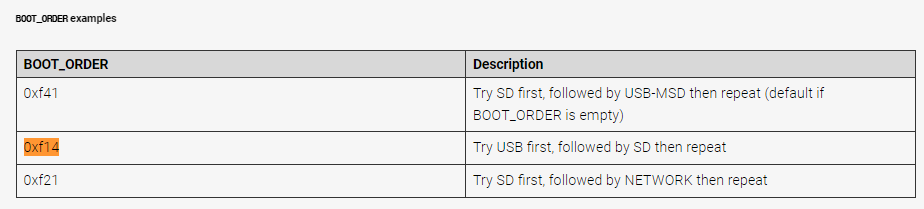
vcgencmd bootloader_config. - Check that
BOOT_ORDER=0xf14is set below. If it’s not set, something got mixed up during configuration, so repeat steps 1-3. - Ref: https://www.raspberrypi.com/documentation/computers/raspberry-pi.html#configuration-properties
5. Flash OS to USB, plug it in, and reboot
- Remove the SD card, flash the OS to a USB drive, and reboot.
- Boom, it boots!
Comments