Note: I’m based in Korea, so some context here is Korea-specific.
1. Sealed Secrets?
We’re doing GitOps right now. That means we’re pushing all cluster-related configuration to Git.
But here’s the problem: Kubernetes Secrets have no encryption. Anyone can decode them with base64 and see the contents in plain text.
So we can’t push them to Git, right?
Sealed Secrets was created to solve exactly this problem.
- The cluster holds an encryption/decryption key.
- Before pushing a file to Git, the user encrypts it with the key the cluster holds.
- The encrypted Secret is pushed to Git. Anyone can see it, but it can’t be decrypted, so it’s safe.
- Later, when the Secret is loaded back into the cluster via something like ArgoCD, the Sealed Secret controller decrypts it automatically.
Sealed Secrets GitHub: Link
2. Adding Sealed Secrets
Let’s blast through the deployment with ArgoCD!
apps/enabled/sealed-secrets-system.yaml
apiVersion: argoproj.io/v1alpha1
kind: Application
metadata:
  name: sealed-secrets-system
  namespace: argocd
spec:
  destination:
    namespace: sealed-secrets-system
    server: 'https://kubernetes.default.svc'
  source:
    path: modules/sealed-secrets-system
    repoURL: 'git@github.com:<YourOrganizationName>/<YourRepositoryName>.git'
    targetRevision: HEAD
  project: default
modules/sealed-secrets-system/sealed-secrets.yaml
apiVersion: argoproj.io/v1alpha1
kind: Application
metadata:
  name: sealed-secrets
  namespace: argocd
spec:
  destination:
    namespace: sealed-secrets-system
    server: 'https://kubernetes.default.svc'
  source:
    repoURL: 'https://bitnami-labs.github.io/sealed-secrets'
    targetRevision: 2.13.3
    chart: sealed-secrets
    helm:
      releaseName: sealed-secrets
  project: default
Then deploy.
After that, install the kubeseal CLI tool with the following command.
KUBESEAL_VERSION='0.23.0' # Latest version as of 2023.12
wget "https://github.com/bitnami-labs/sealed-secrets/releases/download/v${KUBESEAL_VERSION:?}/kubeseal-${KUBESEAL_VERSION:?}-linux-arm64.tar.gz"
tar -xvzf kubeseal-${KUBESEAL_VERSION:?}-linux-arm64.tar.gz kubeseal
sudo install -m 755 kubeseal /usr/local/bin/kubeseal
secret.yaml
apiVersion: v1
kind: Secret
metadata:
  name: mysecret
  namespace: mynamespace
data:
  users: bGVtb246JGFwcjEkL0ZYczZGam0kMkpJZWNlQy45UWc5QjV5NUw2TzVoMAoK
You can create and register a Sealed Secret with the following command.
cat secret.yaml | kubeseal --controller-namespace=kube-sealed-secrets-system --controller-name=sealed-secrets -oyaml > sealed-secrets.yaml3. Setting Up Basic Auth Using Sealed Secrets
In super simple terms, Basic Auth is just an ID/password login.
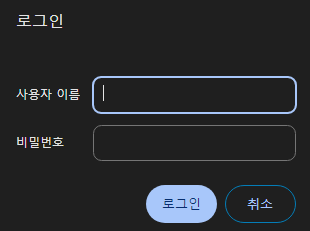
Let’s set up an Ingress so the Longhorn Dashboard can be accessed from the public internet, and add an ID/password login on top! (Run this on Control01)
- Run
apt install apache2-utilsso the htpasswd command becomes available. - Use
htpasswd -nb <id> <password> | openssl base64to get a Secret String containing the id/password. - Create secret.yaml with any text editor and add the Secret based on the following:
apiVersion: v1
kind: Secret
metadata:
  name: longhorn-system-basic-auth
  namespace: longhorn-system
data:
users: <String obtained in step 2>- Run
cat secret.yaml | kubeseal --controller-namespace=sealed-secrets-system --controller-name=sealed-secrets -oyaml > sealed-secrets.yamlto get sealed-secrets.yaml. - Register the ingress as follows.
modules/longhorn-system/ingress.yaml
apiVersion: traefik.containo.us/v1alpha1
kind: IngressRoute
metadata:
  name: longhorn-dashboard
  namespace: longhorn-system
spec:
  tls:
    certResolver: le
  routes:
    - kind: Rule
      match: Host(`<your desired subdomain, e.g. longhorn.lemon.com>`)
      middlewares:
        - name: basic-auth
          namespace: longhorn-system
      services:
        - name: longhorn-frontend
          port: 80
---
apiVersion: traefik.containo.us/v1alpha1
kind: Middleware
metadata:
  name: basic-auth
  namespace: longhorn-system
spec:
  basicAuth:
    secret: longhorn-system-basic-auth
In modules/longhorn-system/sealed-basic-auth-secret.yaml, copy and paste the sealed-secrets.yaml you just generated.
apiVersion: bitnami.com/v1alpha1
kind: SealedSecret
metadata:
  creationTimestamp: null
  name: longhorn-system-basic-auth
  namespace: longhorn-system
spec:
  encryptedData:
    users: adfasdflavasdlfj...
  template:
    metadata:
      creationTimestamp: null
      name: longhorn-system-basic-auth
namespace: longhorn-system- Then deploy.
- After that, when you connect, an id/password prompt will pop up properly, and the page won’t be visible unless you log in!
3. Backup and Recovery
Now we can store sensitive data like Secrets in Git too!
But all good things aside, if the cluster blows up and we lose the decryption key, we won’t be able to unseal our secrets either, right?
So we absolutely must back up the encryption/decryption keys!
- Backup method
- Run
kubectl get secret -n sealed-secrets-system -l sealedsecrets.bitnami.com/sealed-secrets-key -o yaml >master.keyand back up the master.key somewhere safe.
- Recovery method
- Copy the master.key you just backed up to the cluster, and run
kubectl apply -f master.keyto register the master key. - Kill one of the Pods in sealed-secrets-system to force it to read the new key. (Easy to do from ArgoCD)
4. Wrapping Up
We can now store all our data in Git via Sealed Secrets,
and we can expose internal services to the outside world (with at least a minimum of security) using Traefik Basic Auth!
Next time, we’ll look at how to set up a Private Docker Registry!
Comments